


Best SEO Reporting
 1
1
Personalize your reports for each client
No one wants a report just like the one received by the guy next door. Show your clients you interact with them on a personal level. This is an absolute must-do (if letting your clients away to competitors is not on your business plan.)
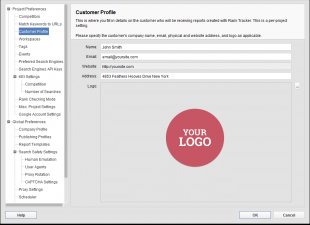
Add your customer's personal info and logo
Let your customers know the reports are made specifically for them and their businesses, and they will appreciate your work.
In SEO PowerSuite, you add information about your customer just once, by filling out a Customer Profile, and all reports you create for this customer will get personalized automatically.
Add relevant non-cliché comments
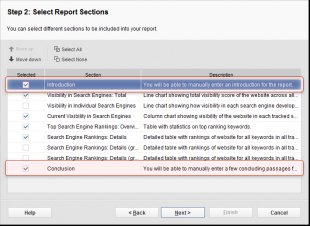
Make up personal introductions and conclusions, with relevant non-cliché comments that prove you pay enough attention to their particular business and needs.
Whenever creating a report template for your customer in SEO PowerSuite, just tick the Introduction and Conclusion checkboxes and type any comments you wish to add to reports.
Speak your client's native language
 Running SEO campaigns for clients overseas? Try to make your SEO reports speak their native tongues.
This is where SEO PowerSuite reports can be of great help. All the software's reports are translated into major world languages:
Make your reports clear and understandable
Make sure your reports are clear as noon day. Make them meaningful and understandable. No one pays for the stuff they can't make a clue of. Your clients pay you to see the results, and see them at a glance.
Use color contrast to add extra visibility
Use well-balanced color schemes that always put into focus the main parts of your report. Add extra prominence to reports' key elements, like titles and headings.
The 5 ready-made color schemes you'll find in SEO PowerSuite's are built to make your reports as readable and clear as possible:

SEO PowerSuite tip How to change your reports colors manually?
If ever needed, you can change the colors of each and every element of your report with simplest changes in its coding.
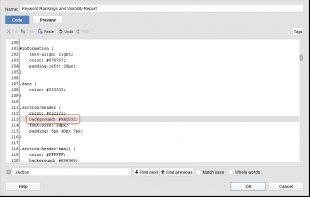
Want to change your report's headlines to give them some special prominence? Here's how you do that.
- Choose the template you want to change in Preferences -> Report Templates.
- Switch over to editing layout by pressing Edit.
- Now find the element you wish to change: press CTRL+f to search for :
Hide tip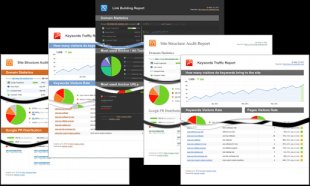 If you browse through the section of the report's coding, you see the colors of all report elements and can change them whenever you like.
Split your data into clear tables and charts
Instead of pouring flows of words over your clients' heads, split your SEO data into visual graphs, diagrams and clear-cut tables, just like it's done in SEO PowerSuite's reports. This way the data you provide is easy to understand at a glance.
SEO PowerSuite tip How to add ranking history graphs to your ranking report?
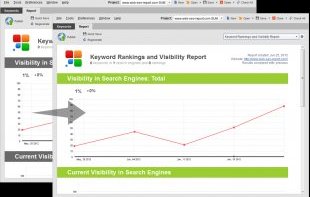
When reporting on ranking progress, why not wrap this data into a clear graph? You can do this with simple tweaks in Rank Tracker's reports:
- Create a new report template (or choose one of the existing templates) in Preferences -> Report Templates.
- Enter the Editing mode using the Edit button.
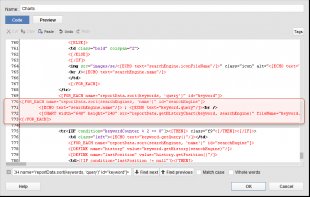
- In the Code view use Ctrl+F to open the search panel and find the line:
4. Paste the following code after this line:
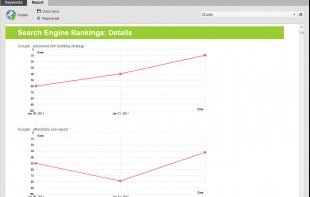
That's it! Now there's a newly-added chart showing ranking history for each keyword:
Hide tipAdd relevant comments to explain SEO data
And once again, don't miss out on using word explanations. Make any terminology or techy details explained in your report's Intro and Conclusion.
 Source: www.link-assistant.com


