


Automatic SEO Tools
Idea
There are several auto blogging plugins that can be used with WordPress. An auto blogging plugin, such as an RSS plugin or WP Content Crawler, is used to automatically get content from other sites to your WordPress site. You can get content from other sites, but, most of the time, you cannot automatically edit those automatically saved posts. WP Post Tools offers a few tools that can be used to automatically edit those posts. The plugin can work with any auto blogging plugin
The auto blog plugin has to use WordPress’ wp_insert_post function to save the posts or trigger the save_post hook after it saves a post. Since this is the WordPress way to create a post, most of the plugins probably do it that way. If you have concerns about this, please ask the developer of the auto blog plugin you use about this to make sure.
How it works
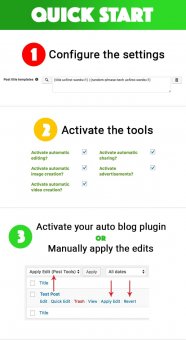
When your auto blogging plugin creates a post on your site, WP Post Tools interrupts the save operation by making the post’s status ‘draft’. Then, it applies the edits you configured, and turns the status of the post back to its original, which is most probably ‘publish’. So, it edits automatically saved posts and publishes them, automatically.
Video tutorials
The video tutorials that you can find in the playlist below cover almost every aspect of the plugin and they will help you understand how the plugin works.
Available in two languages, ready for translation
There are several tools which can be grouped as templates, images, videos, social media, and advertisements.
1. Templates
A template is a text that can contain short codes that the plugin offers or any other text or HTML you want. For example, you can use a post title template to create/change a post title, or post content template to create/change a post content. Inside those templates, you can use several short codes. You can define more than one template for a, let’s say, post title. In that case, the plugin will use one of the templates you defined randomly. So, you can define, for example, 10 post title templates.
1.1 Short codes
The plugin makes it possible to include almost any post data into almost any template. For example, you can use post categories in the title, post content in meta description, post tags in meta keywords, or even post content in post title and so on. The short codes can have several attributes. For example, you can make the post title all uppercase, make only the first chars of the words uppercase, cut the text by words, word percentage or even sentence percentage, add ellipsis to cut texts, limit the number of categories a post can have and a lot more.
One of the most powerful short codes is “conditional phrase” short codes. You can use those to conditionally show something. For example, you can show “code canyon” when the post content contains “wordpress”. Again, you can use that short code in any template. So, you can add “wordpress” tag to a post when the post content contains “envato”. The only limit is your imagination when you use this short code.
Another powerful short code is “random phrase” short code. You can define several random phrases for a short code. Then, when you include the short code in a template, it will be replaced with one of the phrases you defined for that short code. Again, how you will use this depends on your imagination.
2. Images
The plugin can add a related image for a post. You can define image folders and relate them with a keyword or phrase. For example, you can create an image folder named as “health”, put some apple or doctor photos in it, and use that folder when a post’s title contains “health”. So, in case that there is a post whose title contains “health”, the plugin can add one of the images in “health” folder.
It can also write some texts onto the image. You can use the short codes to define the text that will be written onto the image. There are several styling options available as well. Please watch the video tutorial to understand the image creation better.
3. Videos
The plugin can create a video for a post and upload it to YouTube. For this to work, you need to install FFmpeg library to your server and include a few libraries for it as well. You can make sure the libraries are activated properly using “system check” page of the plugin.
So, the plugin can use the images you defined in “images” section along with the images inside a post and make them a slideshow video by adding a background audio and some text. Again, you can define the texts using the short codes. There are several styling options available as well. Please watch the video tutorial to understand the video creation better.


